
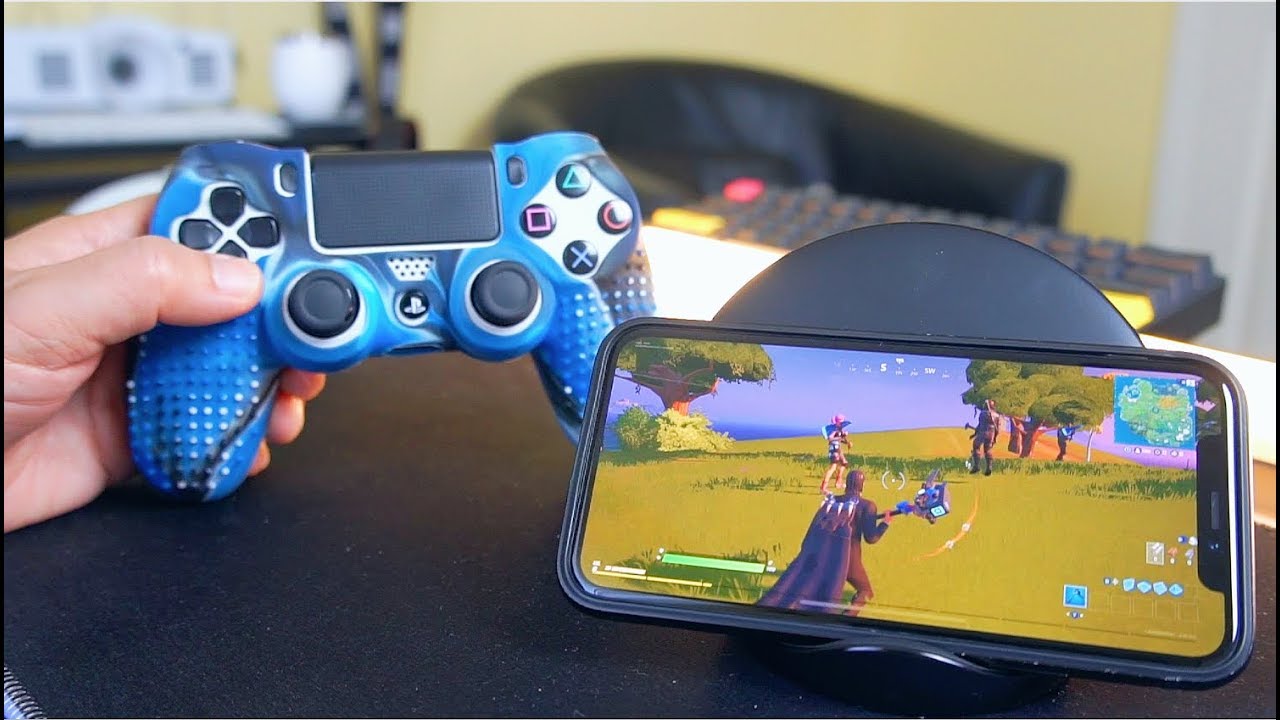
A lot of mobile games are adding controller supports and also streaming features like Stadia or Game pass ultimate. Apple and Android Devices have finally added the options of Bluetooth controller. Which makes the gadgets more than just touchscreen gaming machines. Third-party controllers may not work with every one of them. Yet the DualShock 4 is quite often on the rundown of supported accessories.
Sorting out some way to connect the PS4 controller to iPhone or Android can be fussy. So, follow our steps to connect a PS4 controller to iPhone, iPad, and Android phones.
How to connect your PS4 controller to iPhone or iPad
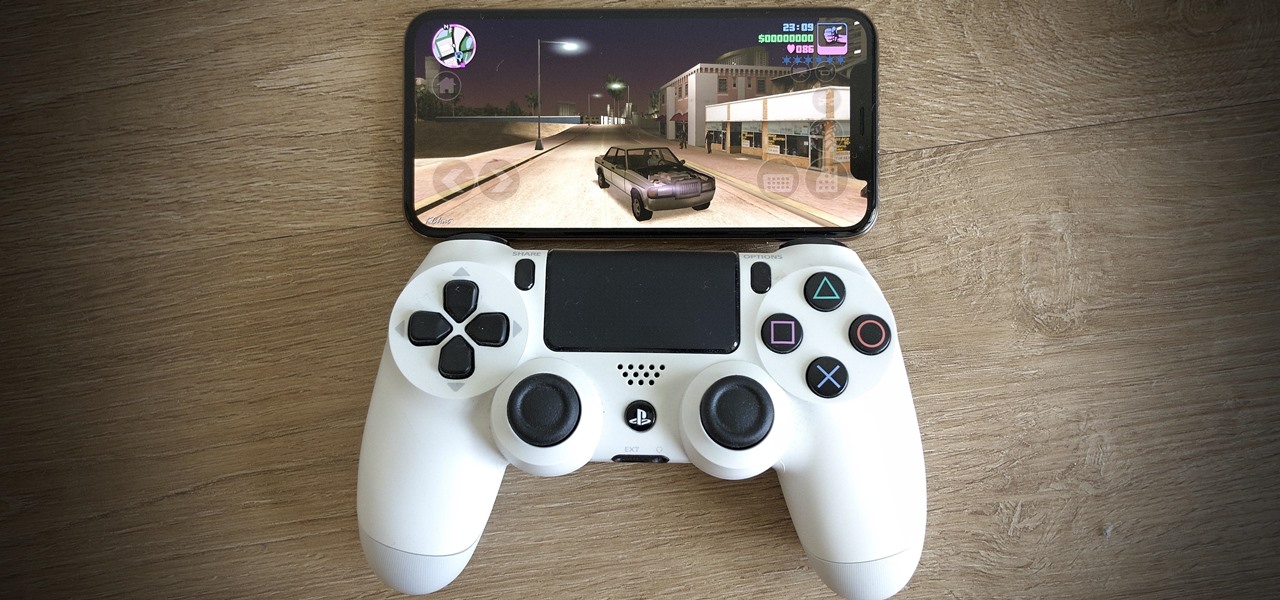
- Ensure that your Apple device is updated to iOS/iPadOS 13 or higher. Once, it’s updated according to the requirement, open the settings option and tap the Bluetooth option.
- Then, take your DualShock and press hold the PS button i.e. the middle button with the PlayStation logo and the share button i.e. the small button right of the D-pad and left of the touchpad simultaneously.
- Do not let go of either of the buttons until the light on the back of the controller starts double-twitching. It should take nearly 5 seconds. If you let go earlier than it requires then the light on the back will blink slowly without pausing and your Apple device will not be able to detect it.
- Once the controller starts emitting light, go to the iOS/ iPadOS Bluetooth settings under the tag ‘Other Devices’. The ‘DualShock 4 wireless controller’ will immediately be shown as soon as the controller enters the pairing mode.
- Click on the DualShock option and the controller will connect and be shown in the ‘My Devices’ in no time. The moment it is synced, the light of the controller will turn into a solid pinkish-red color.
- If the controller is flashing properly but has still failed to pair, then the reason could be that you waited long enough for the DualShock to exit the pairing mode. To pair again, press and hold the buttons again and then quickly tap the selection again under ‘Other Devices’. It should work once again.
How to connect your PS4 controller to an android phone

Ensure that your Android phone is capable of running Android 10 and later. If it is not capable then you have to use a wired connection.
- You have to click on the settings option to open it. Next, select the option of Connected Devices and then + Pair new device. The steps may vary from phone to phone.
- Then, take your DualShock and press hold the PS button.
- Do not let go of either of the buttons until the light on the back of the controller starts double-twitching and then pausing at regular time intervals. It should take nearly 5 seconds.
- When the DualShock 4 is in the pairing mode, it will be shown as ‘Wireless controller’ under ‘Available devices’ for you to choose from. Click on it and then tap ‘Pair’ to confirm the connection. The light should appear as one solid color – blue, in this case.
DualShock Bluetooth troubleshooting
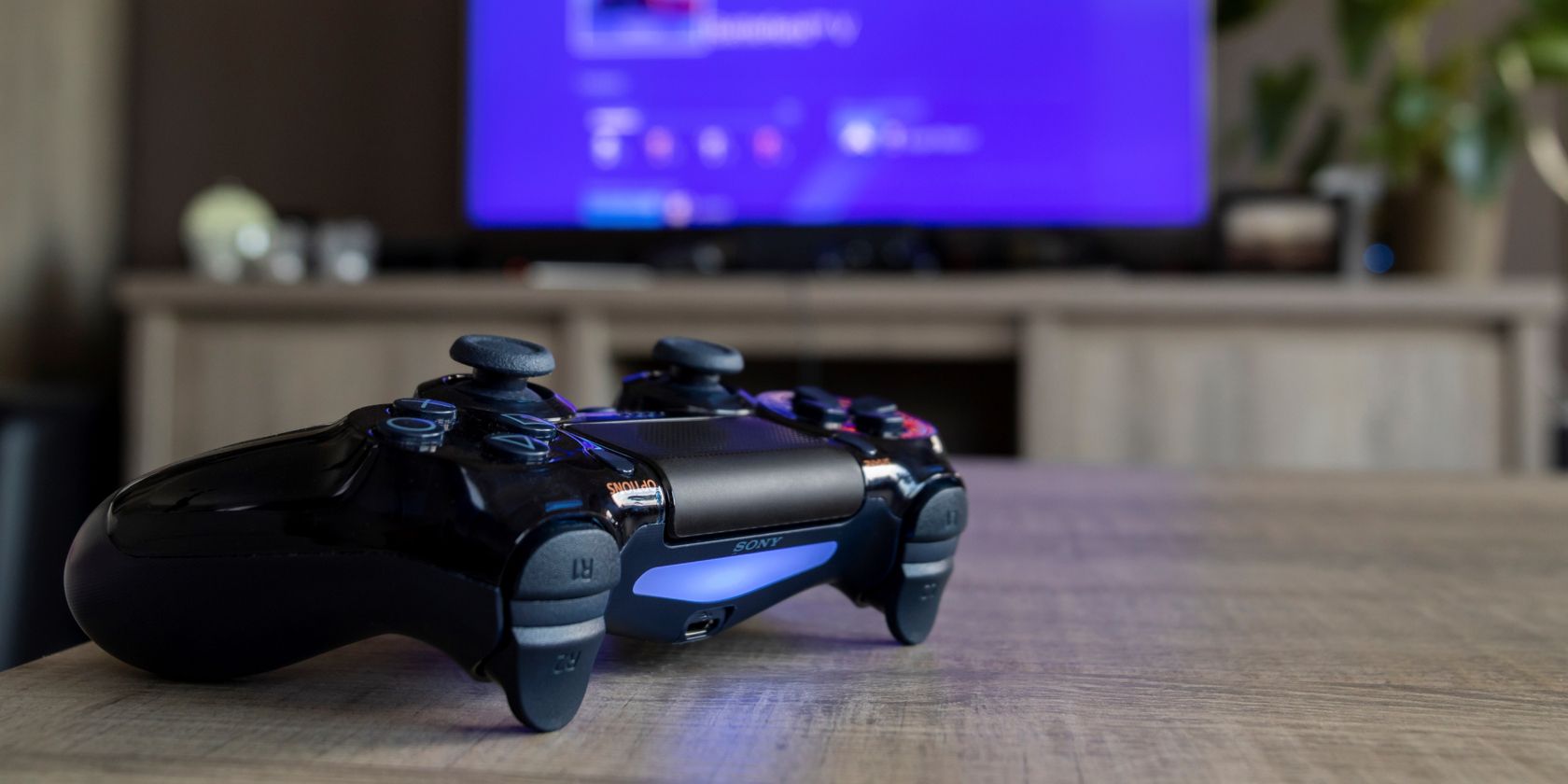
- If your device is continuously unable to detect the DualShock 4 then try plugging it in for some time before attempting to pair it again. The controller may not have enough juice to connect to the device.
- If everything fails, then the issue must be related to the firmware of the controller. You can make use of a paper clip and then insert it into the small hole which is on the back of the controller, to the bottom-left of the L2 button. Press it down for about five seconds, and the controller will be factory reset, making it hypothetically more able to pair properly.
- If you are using an Android phone with a version of 9.0 and below, or if you do not wish to use Bluetooth, then the only option left is the wired connection. All you need is your DualShock 4 charging cable which is USB to micro-USB and an adaptor that will let you plug in the USB to your phone. For Android, that’s a USB-C male to USB female adapter; for iPhones, that’s a lightning male to USB female adapter.